How to Uncap FPS in CS 1.6 for 144Hz, 240Hz & 360Hz Monitors
Learn how to unlock the 100 FPS GoldSrc engine cap, configure fps_override, eliminate vertical sync tearing, and achieve butter-smooth high refresh rate gameplay.
Why CS 1.6 Is Capped at 100 FPS by Default
When Valve originally engineered the Half-Life / GoldSrc engine, standard CRT monitors operated between 60Hz and 100Hz. Consequently, the internal physics and animation clocks were tied to a hard ceiling of 100 frames per second.
If you play on a modern 144Hz, 240Hz, or 360Hz gaming monitor with default settings, your display will refresh faster than the game renders frames, resulting in stutter, micro-tearing, and delayed visual feedback.
With modern patch 8684 and ReHLDS clients, Valve and community developers introduced the fps_override engine hook, allowing framerates to scale cleanly up to 1000 FPS without breaking weapon fire rates or gravity.
Uncapping FPS via Developer Console Commands
To unlock your framerate in CS 1.6, open the developer console (~) and enter the following commands:
fps_override 1
fps_max 250
gl_vsync 0
cl_showfps 1
Command breakdown:
• fps_override 1: Tells the GoldSrc engine to ignore the historical 99.5 / 100 FPS limiter.
• fps_max [value]: Sets your target maximum framerate. We strongly recommend setting this to your monitor refresh rate + 10 (e.g., 144Hz monitor = fps_max 150; 240Hz monitor = fps_max 250).
• gl_vsync 0: Forces in-game vertical sync off, eliminating input delay.
• cl_showfps 1: Displays an accurate, real-time FPS counter in the top-left corner of your display.
Configuring GPU Control Panels (NVIDIA & AMD)
Even after setting fps_override 1 in the console, your graphics card driver may override the game and lock your FPS at 60 or your desktop refresh rate.
For NVIDIA Users:
1. Right-click your desktop and open NVIDIA Control Panel.
2. Navigate to "Manage 3D settings" > "Program Settings".
3. Click "Add" and select hl.exe (Counter-Strike).
4. Set "Vertical sync" to "Off".
5. Set "Max Frame Rate" to "Off".
6. Set "Low Latency Mode" to "Ultra" or "On".
7. Set "Power management mode" to "Prefer maximum performance". Click Apply.
For AMD Radeon Users:
1. Open AMD Software: Adrenalin Edition.
2. Go to Gaming > Games and select Counter-Strike.
3. Disable "Radeon Chill" and "Frame Rate Target Control (FRTC)".
4. Set "Wait for Vertical Refresh" to "Always off".
5. Enable "Radeon Anti-Lag" for lowest click-to-photon latency.
Best Competitive FPS Cap vs Uncapped 1000 FPS
While it is tempting to set fps_max 999 or 1000, running uncapped framerates in older GoldSrc builds can alter physics slightly, such as slowing down mid-air strafing or accelerating weapon bobbing.
For competitive matchmaking:
• 144Hz Monitors: Set fps_max 144 or 150.
• 240Hz Monitors: Set fps_max 240 or 250.
• 360Hz Monitors: Set fps_max 360.
Capping framerates slightly above your native refresh rate ensures perfectly consistent frame delivery, eliminates thermal throttling, and preserves 100% authentic weapon recoil mechanics.
Skip Manual Tweaks — Get the Pre-Optimized 2026 Client
All settings, Windows 11 compatibility fixes, 240Hz uncap parameters, and anti-slowhack protections covered in this guide are pre-applied out of the box in our official 170 MB setup.
Related Technical Guides
 Compatibility
CS 1.6 Windows 11 (24H2) Optimization & Crash Fix Guide
The ultimate technical guide to running Counter-Strike 1.6 flawlessly on Windows 11 and Windows 10 without crashes, input lag, or 60 FPS caps.
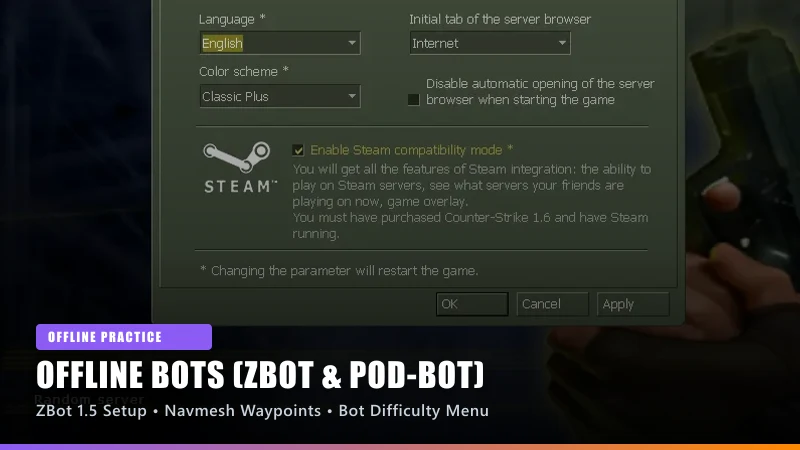 Gameplay
CS 1.6 Offline Bots Guide: Installing ZBot 1.5, POD-Bot & Navmesh Waypoints
Learn how to configure intelligent offline bots in Counter-Strike 1.6 for target practice, warmup routines, and bot navigation on custom maps.
 Display
CS 1.6 Stretched 4:3 Resolution & Black Bars Fix (NVIDIA, AMD & Intel)
Step-by-step guide to removing side black bars, configuring 4:3 stretched resolution (800x600 & 1024x768), and optimizing GPU display scaling on modern widescreen monitors.