CS 1.6 Offline Bots Guide: Installing ZBot 1.5, POD-Bot & Navmesh Waypoints
Learn how to configure intelligent offline bots in Counter-Strike 1.6 for target practice, warmup routines, and bot navigation on custom maps.
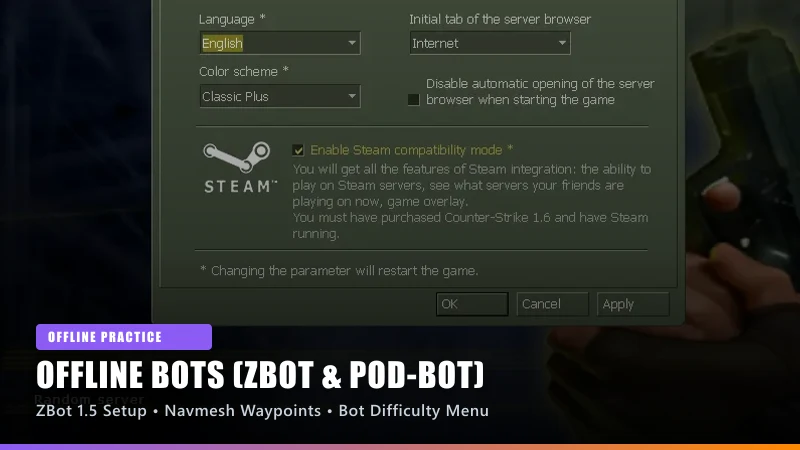
Introduction to CS 1.6 Bot Systems (ZBot vs POD-Bot)
Practicing against bots is the foundation of competitive aim training in Counter-Strike 1.6. There are two primary bot architectures used in modern builds:
1. ZBot 1.5 (Official Valve / Turtle Rock Studios): Highly integrated with standard radio commands, natural movement, and dynamic navigation mesh (.nav) generation on any map.
2. POD-Bot (Community Advanced AI): Known for tactical grenade usage, customizable difficulty curves, and waypoint-based combat behavior.
Our official 170 MB unified installer comes pre-configured with ZBot 1.5 and an in-game Command Menu accessible by pressing "H" during gameplay.
Instant In-Game Bot Controls (The "H" Command Menu)
Once inside an offline match against bots, press the "H" key on your keyboard to reveal the tactical Bot Command Menu. From this menu you can:
• Add Terrorist or Counter-Terrorist bots instantly with one click.
• Adjust bot difficulty across 4 tiers: Easy, Normal, Hard, and Expert.
• Restrict weapons (Pistols only, Knives only, Snipers only) for targeted aim training.
• Slay all bots or restart the training round instantly.
• Toggle bot radio chatter and friendly fire rules.
Essential Console Commands for Bot Management
If you prefer typing commands directly into the developer console (~), use this comprehensive cheat sheet:
• bot_add: Adds a bot to the team with fewer players.
• bot_add_t / bot_add_ct: Forces a bot onto the Terrorist or CT side.
• bot_difficulty [0-3]: Sets bot skill level (0 = Easy, 1 = Normal, 2 = Hard, 3 = Expert).
• bot_kill: Kills all active bots instantly.
• bot_kick: Removes all bots from the current server.
• bot_stop 1: Freezes all bots in place (ideal for practicing crosshair alignment and pre-aim angles).
• bot_knives_only 1: Restricts bots to melee attacks for reflex tracking practice.
• bot_pistols_only 1: Sets up pistol-round warmup drills.
• bot_all_weapons: Restores full weapon buying behavior.
Generating Navigation Meshes (.nav) for Custom Maps
When loading custom maps like de_dust2_2026 or zm_toxic_house that lack pre-built bot files, ZBot will automatically analyze the map geometry on first boot.
1. Load the custom map via console: map [mapname].
2. The game will display: "Analyzing map... this may take several minutes."
3. Do not minimize or close the window while the engine analyzes ladders, chokepoints, and bomb sites.
4. Once complete, a [mapname].nav file is automatically saved into your cstrike\maps directory, and bots will navigate seamlessly on all future launches.
Skip Manual Tweaks — Get the Pre-Optimized 2026 Client
All settings, Windows 11 compatibility fixes, 240Hz uncap parameters, and anti-slowhack protections covered in this guide are pre-applied out of the box in our official 170 MB setup.
Related Technical Guides
 Compatibility
CS 1.6 Windows 11 (24H2) Optimization & Crash Fix Guide
The ultimate technical guide to running Counter-Strike 1.6 flawlessly on Windows 11 and Windows 10 without crashes, input lag, or 60 FPS caps.
 Performance
How to Uncap FPS in CS 1.6 for 144Hz, 240Hz & 360Hz Monitors
Learn how to unlock the 100 FPS GoldSrc engine cap, configure fps_override, eliminate vertical sync tearing, and achieve butter-smooth high refresh rate gameplay.
 Display
CS 1.6 Stretched 4:3 Resolution & Black Bars Fix (NVIDIA, AMD & Intel)
Step-by-step guide to removing side black bars, configuring 4:3 stretched resolution (800x600 & 1024x768), and optimizing GPU display scaling on modern widescreen monitors.