CS 1.6 Comprehensive FPS Optimization Guide for Low & High-End PCs
Maximize your framerates and minimize frametime variance with battle-tested GoldSrc engine commands, video settings, and operating system tweaks.
The Relationship Between Framerate and Hitreg
In modern games, framerate purely dictates visual smoothness. In the GoldSrc engine, however, your client's command rate and weapon spread recovery are directly tied to your rendered framerate.
When your FPS drops below 100, your weapon takes longer to reset its recoil spread, and player movements feel noticeably heavier. Maintaining a flat, unwavering framerate (such as 100, 144, or 240 FPS) is the single most critical factor in winning aim duels.
High-Impact Video Settings in Options Menu
Adjust these core video settings inside CS 1.6:
• Renderer: Always select "OpenGL". Software mode relies on legacy CPU software rasterization, while D3D introduces massive frame pacing stutters.
• Resolution: If playing on an older laptop or low-end integrated GPU, dropping resolution from 1080p to 1024x768 or 800x600 boosts framerates by over 300% without degrading competitive clarity.
• Color Quality: Always select 32-bit. 16-bit color introduces visual smoke banding and can trigger server anti-cheat kicks.
Aggressive Console Optimization Commands for Low-End PCs
If your computer struggles to hold steady framerates around smoke grenades or during 32-player battles, add these commands to your autoexec.cfg:
cl_weather 0
fastsprites 2
max_shells 0
max_smokepuffs 0
r_decals 50
r_dynamic 0
r_mirroralpha 0
gl_cull 1
gl_playermdl 1
What these commands do:
• cl_weather 0: Disables rain on maps like de_aztec, freeing significant CPU overhead.
• fastsprites 2: Renders simplified, lightweight smoke grenade sprites for zero frame drop.
• max_shells 0: Prevents spent bullet shell casings from bouncing across the floor.
• r_decals 50: Reduces stored bullet holes and blood splatters from 300 down to 50.
• r_dynamic 0: Disables dynamic flashlight and muzzle flash lighting computations.
CPU Priority & Power Plan Configuration
To prevent Windows from placing CS 1.6 on low-power CPU efficiency cores:
1. Press Win + R, type powercfg.cpl and press Enter.
2. Select "High performance" or "Ultimate Performance" power plan.
3. Open Task Manager while CS 1.6 is running, go to the "Details" tab, right-click hl.exe, select "Set priority", and choose "Above normal" or "High". Do not set "Realtime", as it can starve audio and mouse input drivers.
Skip Manual Tweaks — Get the Pre-Optimized 2026 Client
All settings, Windows 11 compatibility fixes, 240Hz uncap parameters, and anti-slowhack protections covered in this guide are pre-applied out of the box in our official 170 MB setup.
Related Technical Guides
 Compatibility
CS 1.6 Windows 11 (24H2) Optimization & Crash Fix Guide
The ultimate technical guide to running Counter-Strike 1.6 flawlessly on Windows 11 and Windows 10 without crashes, input lag, or 60 FPS caps.
 Performance
How to Uncap FPS in CS 1.6 for 144Hz, 240Hz & 360Hz Monitors
Learn how to unlock the 100 FPS GoldSrc engine cap, configure fps_override, eliminate vertical sync tearing, and achieve butter-smooth high refresh rate gameplay.
 Gameplay
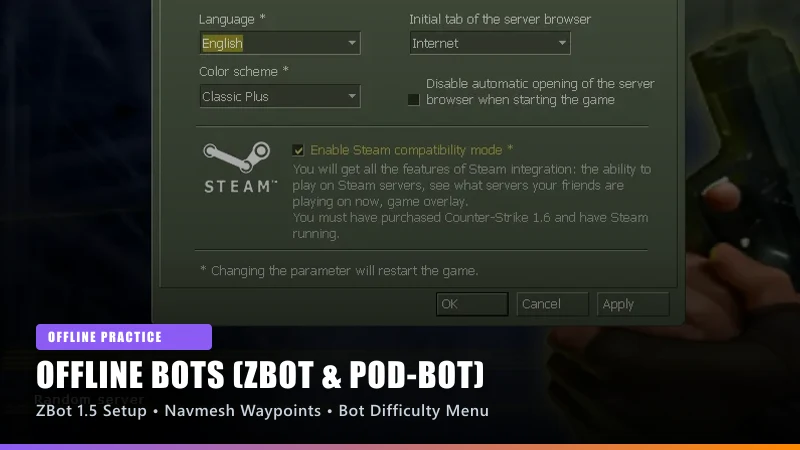
CS 1.6 Offline Bots Guide: Installing ZBot 1.5, POD-Bot & Navmesh Waypoints
Learn how to configure intelligent offline bots in Counter-Strike 1.6 for target practice, warmup routines, and bot navigation on custom maps.